2026-03-17
If you own a weather station manufactured by Metos you can integrate its data with SatAgro using your FieldClimate account. This will allow for more accurate monitoring of weather conditions on your farm.
In this guide, you’ll find step-by-step instructions on how to connect your FieldClimate account within SatAgro.

Obtaining API keys for the station
To work with data from your Metos weather stations, the SatAgro app needs access to historical data collected on the FieldClimate portal. For SatAgro to connect to the station, you must generate API keys, which will allow us to securely retrieve data from the station.
To generate the keys, log in to your account on the FieldClimate portal and go to the “API Services” tab, located in the user menu in the top right corner of the page.
ℹ️ Access to API keys may incur an additional fee on the FieldClimate portal; however, connecting data from your private stations involves no extra charge within SatAgro.
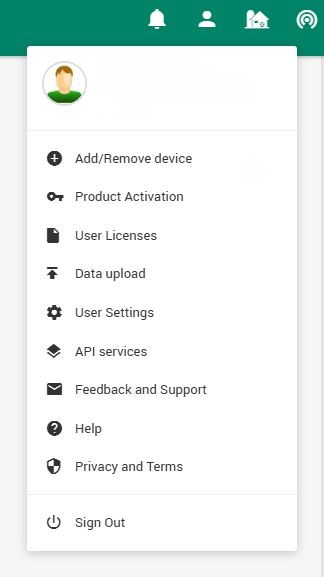
Once you are in the API Services section, simply click “Generate new” to create your HMAC keys. The newly generated keys will appear in the HMAC panel.

Adding a station in SatAgro
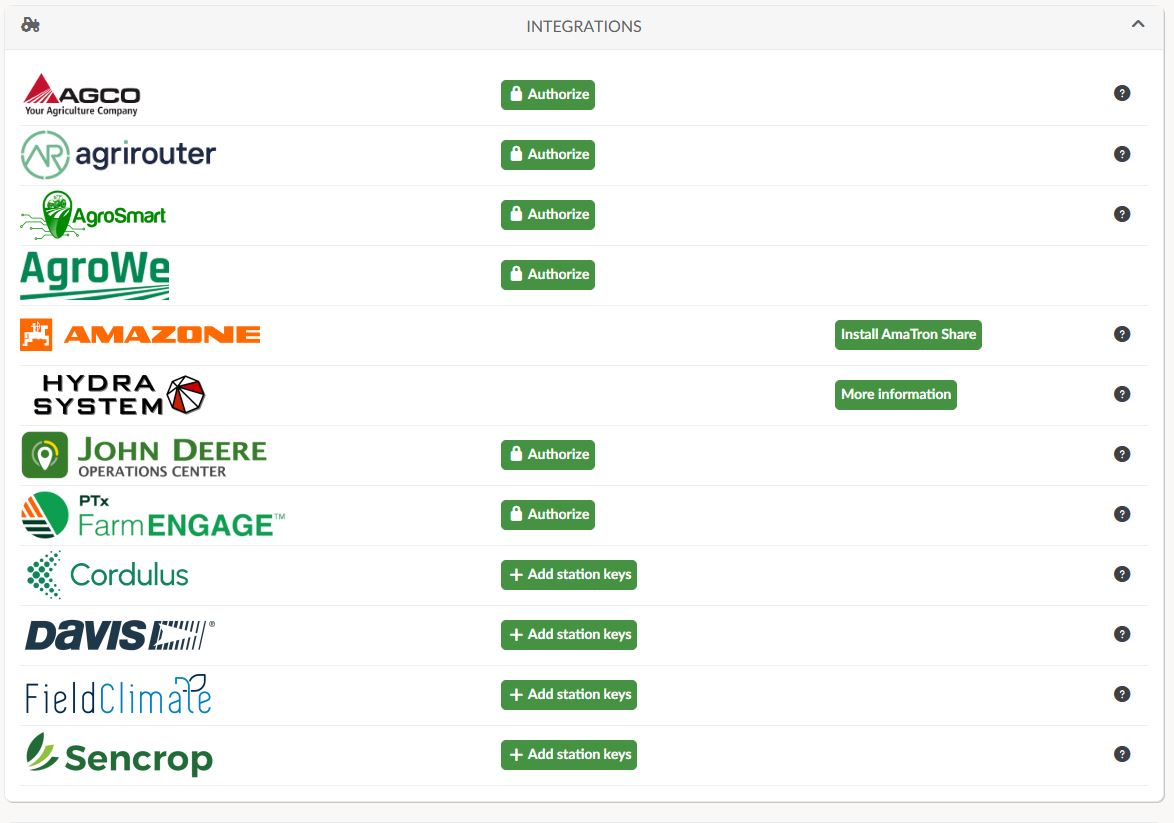
After generating the keys, just add them to SatAgro. Go to your user profile, open the Integrations section, find the FieldClimate row, and click “Add station keys”.
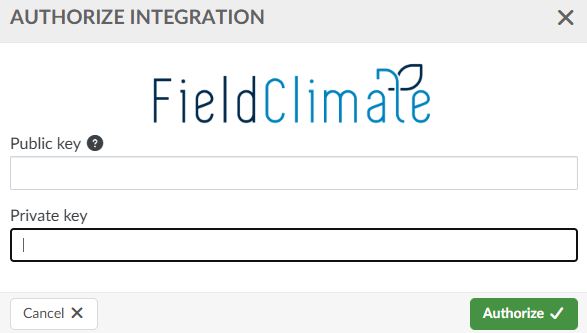
An integration authorization window will then appear, where you need to provide your HMAC keys. To do this, simply copy the Public Key and Private Key from the FieldClimate portal into the authorization window and save the entered values.
If the keys are valid, your stations will be automatically added and assigned to your fields in SatAgro. Weather data will be updated daily based on readings from your stations.
 Platforma